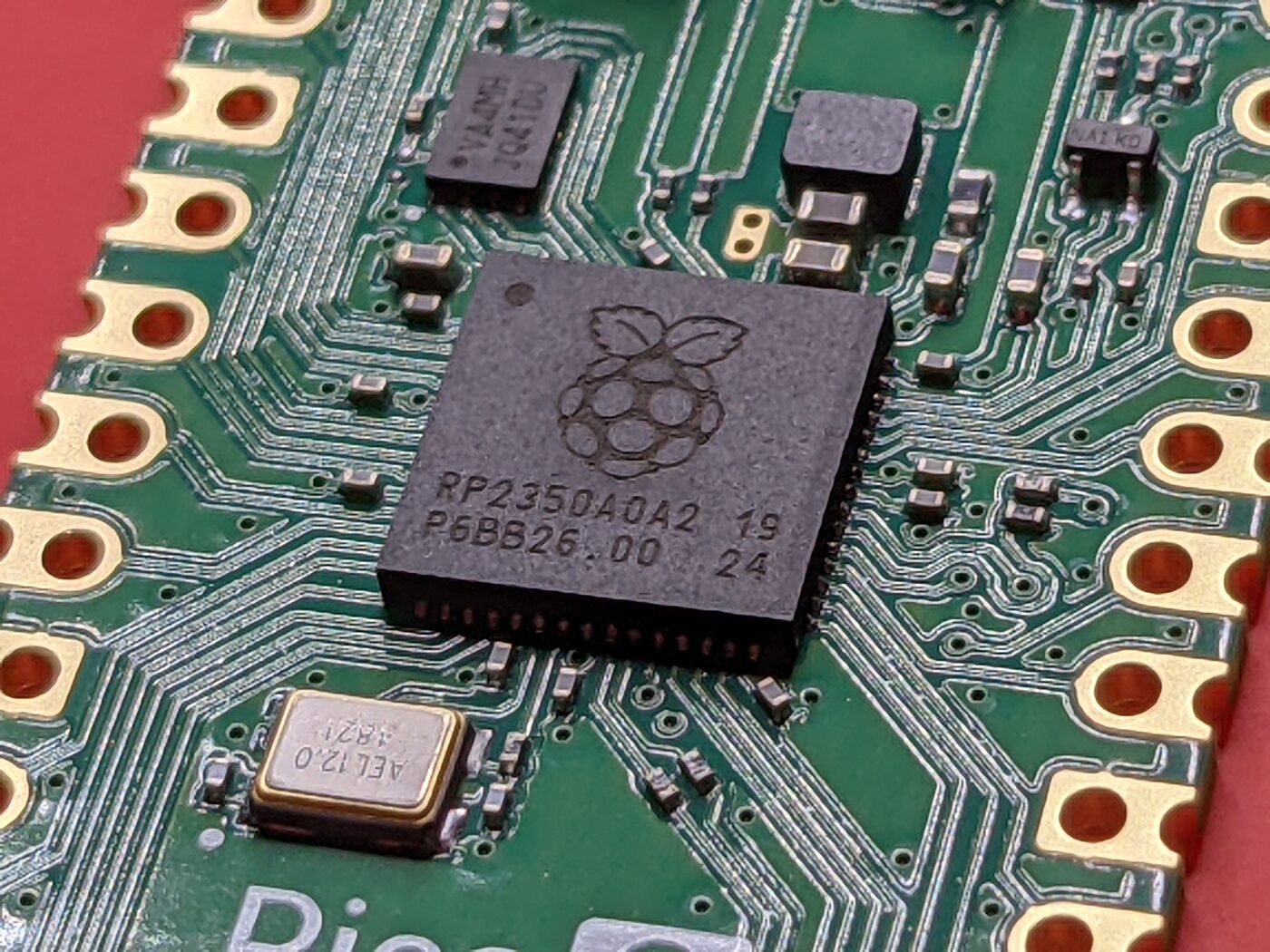
It has been a while between drinks on the Visual Studio Code front. Years ago I wrote about debugging the STM32 range with Cortex-Debug, and the good news is the workflow has only gotten better. The even better news is that Betaflight now runs on the RP2350 – the dual Cortex-M33 microcontroller behind the Raspberry Pi Pico 2 – and the same free tool set debugs it beautifully.
This post walks through the exact configuration I use to debug an RP2350B board (the Hellbender target) from inside VS Code: source-level breakpoints, single stepping, watch expressions and full peripheral register inspection from the SVD. No paid IDE, no vendor lock-in.
What you need
The cast of characters is much the same as the STM32 days, with a couple of Pico-specific swaps:
- Visual Studio Code
- The Cortex-Debug extension (
ext install cortex-debug) - The C/C++ and Makefile Tools extensions for IntelliSense
- The GNU ARM toolchain (
arm-none-eabi-gcc) to build, andgdb-multiarchas the debugger client - OpenOCD with RP2350 support (0.12 or newer – the build that ships with the Pico SDK / Raspberry Pi fork is ideal)
- A CMSIS-DAP probe. The Raspberry Pi Debug Probe is cheap, official and just works
Wiring up the probe
The RP2350 debugs over SWD, so you only need three wires from the Debug Probe to the board’s debug header: SWCLK, SWDIO and GND. Power the board as you normally would. Unlike the old ST-Link/Zadig dance on Windows, the Debug Probe enumerates as a standard CMSIS-DAP device and needs no driver fiddling.
Building with debug symbols
Before you can step through anything, you need a build that GDB can actually reason about. Betaflight’s build system makes this trivial – pass DEBUG=GDB and it switches to -Og optimisation with DWARF-5 symbols (and disables LTO so rebuilds stay quick):
make CONFIG=HELLBENDER_0001 DEBUG=GDB
That produces the ELF we are going to load into the debugger:
obj/main/betaflight_RP2350B_HELLBENDER_0001.elf
Swap HELLBENDER_0001 for whichever RP2350 config you are working on – the output file name follows the betaflight_<MCU>_<CONFIG>.elf pattern, so keep an eye on it as it feeds straight into the launch config below.
Starting OpenOCD
I run OpenOCD as an external server and let Cortex-Debug attach to it. This keeps the GDB server under my control and makes it obvious when something on the probe side is unhappy. Point it at the CMSIS-DAP interface and the RP2350 target:
openocd -f interface/cmsis-dap.cfg -c "adapter speed 5000" -f target/rp2350.cfg
The target/rp2350.cfg script selects the SWD transport and, by default, brings up both Cortex-M33 cores under SMP. When it connects you will see OpenOCD listening for GDB on port 3333 – that is the address we hand to Cortex-Debug.
tasks.json – building from VS Code
So that VS Code can build the firmware before each debug session, add a build task. This is the .vscode/tasks.json I use – the build-HELLBENDER label is what the launch config calls as its pre-launch step:
{
    "version": "2.0.0",
    "type": "shell",
    "presentation": {
        "echo": true,
        "reveal": "always",
        "focus": false,
        "panel": "dedicated"
    },
    "tasks": [
        {
            "label": "build-HELLBENDER",
            "command": "make",
            "args": [
                "CONFIG=HELLBENDER_0001",
                "DEBUG=GDB"
            ],
            "group": {
                "kind": "build",
                "isDefault": true
            },
            "problemMatcher": ["$gcc"]
        },
        {
            "label": "clean-HELLBENDER",
            "command": "make",
            "args": [
                "CONFIG=HELLBENDER_0001",
                "clean"
            ],
            "problemMatcher": []
        }
    ]
}
launch.json – the Cortex-Debug configuration
This is the heart of it. The .vscode/launch.json below tells Cortex-Debug to attach to our already-running OpenOCD, load the RP2350B ELF, and use the RP2350 SVD for the peripheral register view:
{
    "version": "0.2.0",
    "configurations": [
        {
            "type": "cortex-debug",
            "request": "launch",
            "name": "Debug Microcontroller",
            "executable": "${workspaceRoot}/obj/main/betaflight_RP2350B_HELLBENDER_0001.elf",
            "cwd": "${workspaceRoot}",
            "servertype": "external",
            "gdbPath": "gdb-multiarch",
            "gdbTarget": "127.0.0.1:3333",
            "preLaunchTask": "build-HELLBENDER",
            "runToEntryPoint": "main",
            "showDevDebugOutput": "raw",
            "device": "RP2350",
            "svdFile": "${workspaceRoot}/lib/main/pico-sdk/src/rp2350/hardware_regs/RP2350.svd"
        }
    ]
}
A quick tour of the fields that matter:
servertype: "external"– we are not letting the extension launch OpenOCD; it connects to the one we started ourselves.gdbTarget: "127.0.0.1:3333"– the OpenOCD GDB port from the previous step.gdbPath: "gdb-multiarch"– the multi-architecture GDB. (arm-none-eabi-gdbworks too if that is what you have on yourPATH.)executable– the ELF from theDEBUG=GDBbuild. The symbols here are what let you set breakpoints in source.preLaunchTask: "build-HELLBENDER"– rebuilds before launching so you are never debugging stale code.runToEntryPoint: "main"– flashes, resets and halts atmaininstead of leaving you somewhere in the bootrom.deviceandsvdFile– these power the Cortex Peripherals view, so you can read and decode every RP2350 register by name rather than poking at raw addresses.
IntelliSense – c_cpp_properties.json
Strictly optional, but it makes editing far nicer. Letting the Makefile Tools extension provide the configuration, plus defining the MCU, gets you accurate code navigation:
{
    "configurations": [
        {
            "name": "Linux",
            "includePath": [
                "${workspaceFolder}/**"
            ],
            "defines": [
                "RP2350B",
                "USE_ADC",
                "USE_ADC_INTERNAL"
            ],
            "cStandard": "c17",
            "cppStandard": "c++17",
            "configurationProvider": "ms-vscode.makefile-tools"
        }
    ],
    "version": 4
}
Hit F5
With OpenOCD running and the three files in place, press F5. VS Code runs the build task, Cortex-Debug connects to OpenOCD, flashes the ELF, resets the chip and halts you at main. From there it is everything you would expect: click in the gutter to set breakpoints, step over and into, hover to inspect variables, add watch expressions, and pop open the Cortex Peripherals panel to watch RP2350 registers change in real time.
It is a genuinely lovely way to work on flight controller firmware – the same free, open tool chain I have been recommending for years, now pointed squarely at the Pico 2. Go break some things (in the debugger).